
How to Merge PDF Files Online for Free

Implementation note The Merge PDF tool uses pdf-lib’s page-copying API and processes PDF data inside the browser tab. Available memory varies by browser, device, file structure, and the number of documents selected.
Merging two PDF files sounds like it should be a non-event. Drop two files in, click a button, get one file out.
Here’s the part most guides skip: what actually happens to your files during that process, and why it sometimes goes wrong. Some merge tools send your files to a server first, without you ever choosing to allow it. Others handle the merge fine on 3 small files, then choke or produce a blank page on file 40. This guide covers both, plus the exact fixes.
What Actually Happens When You Merge a PDF
A PDF file is not one flat document. It’s a set of objects: a page tree, individual page objects, fonts, images, and a cross-reference table that tells a PDF reader where everything lives inside the file.
When you merge PDFs, a merge tool opens each source file, reads its page objects in order, and copies them into a new document. Done correctly, this copy step does not touch the pixels or the text at all. It moves the existing page objects across, so the text stays selectable and the images stay at their original resolution.
That “done correctly” part matters. Some tools take a shortcut: they render each page to an image first, then rebuild the PDF from those images. This is usually what happens behind a “print to PDF” workaround, or inside a lower-quality converter. The result opens fine, but you lose searchable text, the file gets larger, and links or form fields stop working.
LocalPDFLab’s Merge tool uses pdf-lib to call copyPages() directly, which copies page objects instead of rasterizing them. The merge operation does not intentionally re-encode page images or text.
Where Your Files Actually Go
This is the part that catches people off guard. Most “free PDF merger” sites need your files on their server before they can do anything, because the merge logic runs there, not in your browser.
The table below shows the practical difference.
| Upload-based tools | Browser-based tools (LocalPDFLab) | |
|---|---|---|
| Where the merge happens | On the provider’s server | Inside your browser tab with JavaScript |
| PDF data during processing | PDF bytes are sent over the network | PDF bytes are not uploaded to our server |
| Practical file limit | Depends on the provider’s plan and limits | Depends on available browser and device memory |
| Speed on large batches | Depends partly on upload speed | Depends mainly on the device’s CPU and memory |
| Remote copy | A remote copy is required for processing | No remote processing copy is created by the app |
This is not a small detail. In March 2025, the FBI Denver Field Office warned about malicious online file converters that can distribute malware or scrape sensitive information from submitted files. That warning does not mean every online converter is malicious, but it does show why understanding where processing occurs matters.
None of this means every upload-based tool is unsafe. It means the moment you click “upload,” you’ve handed a copy of that document to a third party, and you no longer control what happens to it next. For a birthday invite, that’s fine. For a contract, a passport scan, or a client invoice, it’s worth knowing a version of the same tool exists that skips the upload step completely.
Why Some Merges Fail or Look Wrong
Four problems account for almost every merge failure. Here’s what causes each one, and the actual fix, not the workaround people usually try first.
1. The file is password-protected. A merge tool can’t read pages inside an encrypted PDF without the password, the same way you can’t read a locked drawer without the key. LocalPDFLab’s Merge tool detects this and asks for the password locally, in the browser, before adding the file. The password is not sent to our server. If it is your own file and you can open it, use Remove Password from PDF first to create an unlocked copy.
2. The file is corrupted or not a real PDF.
Sometimes a file was renamed from .docx to .pdf, or a download didn’t finish. The merge tool rejects it with a clear message instead of merging in a broken file. Typical error output looks like this:
Error: This file is password protected and can't be merged.
Error: This file couldn't be read. It may be corrupted, invalid, or password-protected.
The fix is usually to re-download or re-export the source file, not to force the merge.
3. The tab runs out of memory on a large batch. Every file you add is held in memory while the merge runs. Browsers and devices impose different practical memory limits, and complex PDFs can require much more working memory than their file size suggests. A large batch can therefore freeze or crash a tab on a lower-memory device.
What NOT to do here: don’t keep clicking merge repeatedly when it stalls. That queues up multiple attempts in the same memory space and makes a crash more likely, not less. Instead, split the batch into two smaller groups, merge each group, then merge the two results together.
4. Pages come out sideways or in the wrong order. This isn’t actually a merge bug, it’s usually the source file. If a page was sideways in the original PDF, it stays sideways after merging, since merging copies pages exactly as they are. Fix the rotation in the source file first with Rotate PDF, or reorder pages within a single file first with Organize PDF, then merge.
Step-by-Step: Merge PDFs Without Uploading Anything
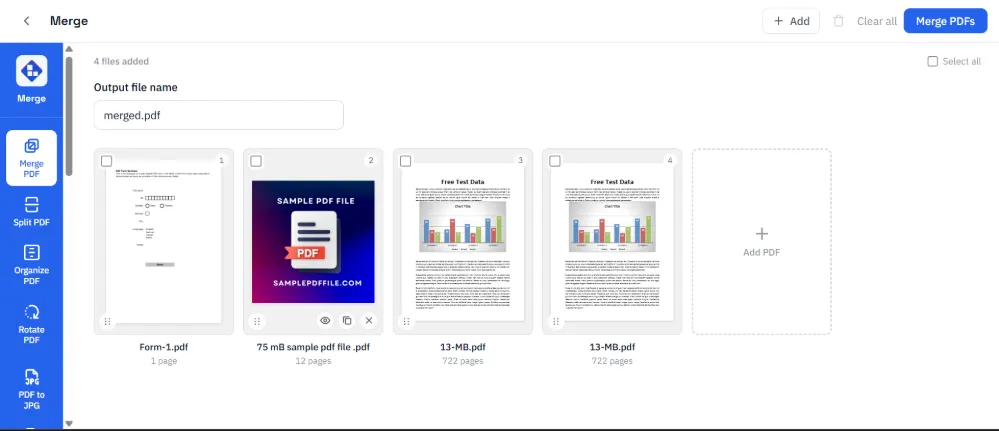
- Open Merge PDF.
- Drop in two or more PDF files, or click to browse for them. Order doesn’t matter yet.
- Drag any file tile to set the final order. The number badge on each tile shows its position in the output.
- If a file is password-protected, enter its password when prompted. This happens locally, in the browser tab.
- Set the output file name if you want something other than
merged.pdf. - Click Merge PDFs, then Download merged PDF.
Handling Larger or More Complex Jobs
If your merged file ends up too large to email or share afterward, run it through Compress PDF once, rather than compressing each source file beforehand. Compressing after merging avoids compressing the same content twice.
If you only need a few pages from a larger source file rather than the whole thing, use Split PDF to extract those pages first, then merge the extracted file in with the rest. Merging always takes complete files as input, it doesn’t offer a page picker of its own.
If the final merged file needs to be locked down before you send it, add a password afterward with Password Protect PDF. Do this last, after merging, since a merge tool can’t read pages inside a file that’s already encrypted.
How to Know It Worked
Check these four things after any merge:
- Page count. Open the result and confirm the page count matches the sum of your source files’ page counts.
- Selectable text. Press Ctrl+F (or Cmd+F) and search for a word you know exists in one of the source files. If it’s found and highlighted, the text wasn’t rasterized.
- File size. The merged file should land close to the sum of the source file sizes, give or take a small amount for the new file structure. A merged file dramatically smaller than the sum of its parts is a sign something got rasterized or dropped.
- Network panel. Confirm that no request made during the merge contains your PDF data. Requests for site code and other static assets are normal.
That’s the full picture: what a merge tool actually does to your pages, the four real causes of a failed or wrong-looking merge, and how to check the output instead of just trusting it. If all four checks above pass, your merge worked correctly, and your files never left your browser tab.
Frequently asked questions
Does LocalPDFLab upload my PDFs to a server when merging?
No. The Merge PDF tool uses JavaScript inside your browser tab. Your files are read locally and are not sent to our server. You can inspect your browser's Network panel while merging to verify that no request contains your PDF data.
Can I merge PDFs that are password-protected?
Yes. You'll be prompted for the password locally in the browser before that file is added. The password is never transmitted anywhere.
Why did my merged PDF end up bigger, or lose selectable text?
That usually means a tool rasterized the pages instead of copying them. LocalPDFLab's Merge tool copies the original page objects directly, so text stays selectable and embedded images are not intentionally recompressed.
Is there a limit to how many PDFs I can merge at once?
There's no hard limit, but every file is held in your browser tab's memory during the merge. Very large batches (dozens of files, hundreds of MB) can be slow or crash the tab on lower-RAM devices, splitting the batch into two smaller merges usually fixes this.
Will merging change the quality of my original PDFs?
No. Merging copies the original pages exactly as they are, with no recompression or re-rendering involved.