
How to Remove a Password from a PDF You Own

Implementation note The Remove password tool runs qpdf compiled to WebAssembly, and processes both your PDF and your password inside the browser tab. The wasm module itself is a static asset fetched once from the site, not a place where your file data is sent.
You typed the password, clicked unlock, and got told it’s wrong. Except you’re sure it isn’t. Or the tool asked for a password on a file that opens just fine in your PDF reader, no prompt at all.
Here’s what most guides skip: a PDF can be “protected” in two completely different ways, and mixing them up is the reason half of these failures happen. This guide covers what’s actually going on under the hood, the four real causes of a failed unlock, and how to check that the result is genuinely clean.
What Actually Happens When You Remove a Password
A PDF can carry two separate kinds of protection, and a PDF reader treats them very differently. The first is an open password (sometimes called a user password), which the reader must have before it will render anything at all. The second is a set of owner restrictions, like “no printing” or “no copying text,” which the reader enforces on its own even though the file opens with no prompt.
LocalPDFLab’s tool checks which situation you’re in before it asks you for anything. It runs qpdf with the --is-encrypted flag against your file, inside a Web Worker, entirely in the browser tab. If the file only carries owner restrictions and no open password, you’ll see a notice that there’s nothing to unlock a password for, and you can strip the restrictions with the password field left blank.
If an open password is required, the tool prompts for it, then runs qpdf’s --decrypt command with that password against the file. On success, qpdf writes a brand new PDF with no encryption at all. On failure, it exits with a specific code, and the tool reads the diagnostic output to tell a wrong password apart from a genuinely damaged file.
Where Your Password Actually Goes
This distinction matters more for a password removal tool than almost any other PDF operation, because you’re typing a credential into a form on a website.
| Upload-based unlockers | Browser-based (LocalPDFLab) | |
|---|---|---|
| Where decryption happens | On the provider’s server | Inside your browser tab, via WebAssembly |
| Your password | Submitted with the file over the network | Read into memory locally, never transmitted |
| What’s fetched from the site | Your PDF, sent to their backend | A static wasm module, unrelated to your file data |
| Offline behavior | Impossible, a server round trip is required | Works offline once the wasm module has loaded once |
| Original file | Depends on the provider’s retention policy | Left untouched on your device |
If you only remember one thing from this table, make it this: on an upload-based site, the moment you click submit, you’ve handed over both a sensitive document and its password to a party you don’t control. For a lot of files that’s a fine trade. For a signed contract, a tax return, or anything with a client’s name on it, it’s worth knowing there’s a version of this tool that skips that step.
Why Some Unlocks Fail or Look Wrong
Four situations account for nearly every failed or confusing unlock. Here’s the real cause for each, and the fix, not the thing people try first.
1. The password is genuinely wrong, usually by one character. Passwords are case sensitive, and qpdf treats a trailing space or a smart quote from a pasted note as a different string entirely. The tool’s error handling specifically looks for wording like “invalid password” or “incorrect password” in qpdf’s own diagnostic output and shows a clear “that password didn’t work” message rather than a generic failure. What NOT to do: don’t keep resubmitting the same pasted password expecting a different result. Retype it by hand instead.
2. You’re entering a password where none is needed. If a PDF only has owner-level restrictions (no open password, just limits on printing or editing), typing anything into the password field is unnecessary. The status check catches this automatically and shows an “already unprotected” or “removable restrictions” notice instead of prompting you. Leave the field blank and let the tool proceed.
3. The file is damaged or uses an unsupported protection format. qpdf can return an exit code that isn’t a wrong-password error at all, in which case the tool reports that the PDF “may be damaged or use an unsupported protection format.” This happens with older certificate-based encryption or a file that was truncated during a download. Re-export or re-download the source file rather than retrying the same broken copy.
4. The first attempt happened offline. The wasm build of qpdf is around a megabyte and is fetched once, the first time you use the tool. If your very first attempt happens with no connection, the module can’t load and the unlock fails with a message pointing at connectivity, even though nothing about your file was ever going to touch the network. Run one unlock while online, and it works offline from then on for that browser session.
Step-by-Step: Remove a PDF Password Without Uploading It
- Open Remove password from PDF.
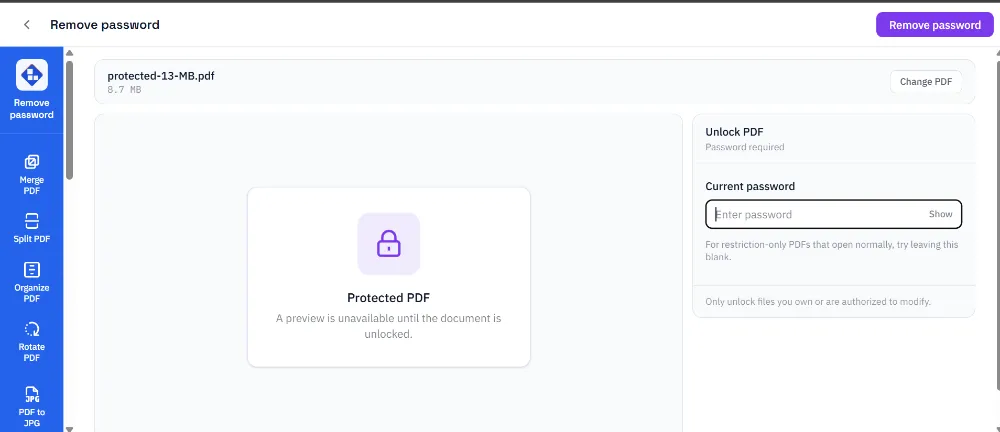
- Drop in your protected PDF, or click to browse for it. The tool checks its encryption status automatically.
- If a password is required, type it into the field. If the PDF only has restrictions and opens without a prompt, leave the field blank.
- Click Remove password.
- Watch the progress messages: checking security, removing the password, finalizing the PDF.
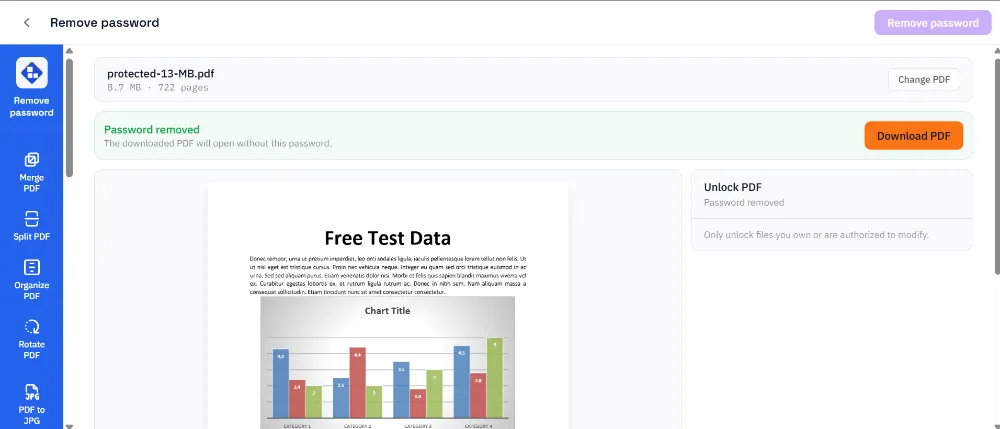
- Review the first-page preview generated from the newly decrypted copy.
- Click Download PDF. The saved file opens with no password.
Handling Larger or More Complex Cases
If the file you just unlocked needs to go straight into another workflow, you don’t need to re-enter the password anywhere else. Use the downloaded copy directly with Fill PDF form or Sign PDF, since both tools work on the unlocked file like any other PDF.
If you need to combine the unlocked file with others, run it through Merge PDF after unlocking, not before. A merge tool can’t read pages inside a file that’s still encrypted.
If the document still needs to be locked down once you’re done editing it, apply a fresh password at the very end with Password protect PDF. Do this last, since the whole point of decrypting first is to let other tools read the pages.
If only a few pages of a large unlocked file are actually relevant to what comes next, pull them out first with Split PDF or reorder them with Organize PDF before you continue.
How to Know It Worked
Run these four checks on the downloaded file before you rely on it:
- No password prompt. Close the file completely, then reopen it in your PDF reader. It should open with no dialog at all.
- Page count matches. Confirm the unlocked copy has the same number of pages as the original protected file.
- Original file untouched. Check that the source PDF you dropped in is still password-protected. LocalPDFLab never modifies the file you selected, it only creates a new unlocked copy.
- Network panel. Open your browser’s developer tools during an unlock and confirm no outgoing request carries your PDF bytes or the password you typed. Requests for the site’s own static files, including the wasm module on first use, are expected and unrelated to your file.
Error: This does not appear to be a valid readable PDF. It may be corrupted or use an unsupported protection format.
Error: That password didn't work. Double check it and try again.
If all four checks pass, the password is gone for good and your original stayed exactly where it was. Head back to the Remove password tool any time you need to unlock a file you own, without sending it anywhere first.
Frequently asked questions
Does removing a password upload my PDF anywhere?
No. The Remove password tool checks the file's encryption, verifies your password, and creates the unlocked copy inside your browser tab using a WebAssembly build of qpdf. Your PDF and the password you type never leave your device.
What if my PDF opens fine but has no password prompt?
Some PDFs only restrict printing, editing, or copying, without requiring a password to open. LocalPDFLab detects this case and lets you remove those restrictions without entering anything, since there is no open password to check.
Why does it say the password is wrong when I'm sure it's right?
Passwords are case sensitive, and a trailing space typed by mistake counts as a different password. Retype it manually instead of pasting from a note where autocorrect may have changed a character.
Can this tool crack or recover a password I've forgotten?
No. It removes encryption only when you already know the password, or when the PDF has restrictions that don't require an open password at all. There is no brute-force or recovery feature.
Why did it fail the first time I tried it with no internet?
The tool loads a small WebAssembly module the first time you use it. If that first load happens while you're offline, the unlock step can fail even though the actual password removal runs locally. Complete one unlock while online, then it works normally after.
Is the downloaded file actually different from my original?
Yes. LocalPDFLab creates a separate, unencrypted copy. Your original protected PDF stays exactly as it was on your device, so you always have the locked version to fall back on.