
Browser PDF Security for Confidential Documents

The dangerous assumption is simple: if a PDF editor runs in your browser, the document must stay on your computer. That isn’t guaranteed. Once you select a file, the page’s JavaScript can read its bytes, edit them locally, send them to a server, or do both.
So here’s the honest answer. Browser-based PDF editing can be secure enough for many confidential documents, but only when you verify the processing path and trust the device, browser, page code, and storage behavior. A padlock icon and a promise saying “100% private” aren’t enough.
The Short Answer: Local Processing Reduces One Big Risk
A true local editor avoids creating a processing copy on the provider’s server. That removes upload exposure, server logs containing document data, server-side temporary files, and questions about deletion schedules. It also lets a prepared editor keep working after the network is disabled.
That benefit is real. The W3C File API gives a page access to files you deliberately select, usually through a file picker or drag and drop. The browser doesn’t grant the site access to every file on the drive, but it does let the selected page read the selected file.
Use this decision table before opening the document:
| Document type | Browser editor decision | Minimum condition |
|---|---|---|
| Public brochure or blank form | Usually acceptable | Correct site and current browser |
| Internal memo or ordinary invoice | Acceptable with checks | Verified local processing and trusted device |
| Client contract, tax file, or identity scan | Conditional | Offline test, clean browser profile, and policy approval |
| Medical record, legal privilege, payroll export, or trade secret | Default to an approved offline tool | Use a browser editor only after a documented security review |
| Classified or export-controlled material | Do not make your own exception | Follow the mandated system and handling rules |
The label “confidential” isn’t precise enough by itself. Your employer’s handling policy, client contract, retention rules, and incident impact decide the acceptable path. Local processing lowers risk, but it can’t cancel those obligations.
Root Cause: The Browser Is a Runtime, Not a Privacy Guarantee
When you choose a PDF, the browser creates a File object. Application code can call file.arrayBuffer(), transfer those bytes to a Web Worker, parse them with JavaScript or WebAssembly, and turn the result into a temporary blob: URL for download. That entire path can stay inside the device.
The same application code can pass the bytes to fetch(), XMLHttpRequest, a WebSocket, or navigator.sendBeacon(). A Web Worker improves responsiveness and separates processing from the page’s main thread, but it isn’t a data-loss barrier. WebAssembly changes the instruction format, not the trust boundary.
A Content Security Policy can restrict destinations. For example, the CSP connect-src directive covers fetch, XHR, WebSocket, EventSource, and beacon connections, as documented by MDN. A policy of connect-src 'none' is strong for an editor that needs no network calls after loading.
Still, CSP is a control supplied by the site. If an attacker controls both the server response and its scripts, they may be able to change that policy too. Treat CSP as useful evidence, not mathematical proof.
| Trust boundary | What can fail | Control that helps |
|---|---|---|
| Web application | Code uploads the selected file | Network inspection and offline export test |
| Third-party script | Analytics, ads, or a compromised tag reads page data | No third-party scripts on editor routes, strict CSP |
| PDF parser | A crafted PDF triggers a library flaw | Current browser and patched PDF libraries |
| Browser extension | An extension reads or changes the editor page | Fresh profile or extension-free private window |
| Endpoint and storage | Malware, swap, backups, or sync copies the file | Managed device, encrypted disk, controlled save folder |
OWASP’s third-party JavaScript guidance spells out the central script risk: third-party code can execute with the page’s privileges and disclose sensitive information. This is why an editor page loaded with ad tags deserves more scrutiny than a self-contained page with same-origin, versioned assets.
1. Classify the File Before Choosing the Tool
Start with impact, not convenience. Ask what happens if the file reaches the wrong person, whether the document is covered by a client or employer rule, and whether a named application or managed device is required. If you can’t answer, pause and ask the data owner.
For normal business-confidential material, a verified local editor on a managed laptop can be a sensible choice. For restricted data, use the approved desktop application or virtual workspace. This isn’t because desktop software is automatically safe. It’s because the approved path has ownership, update controls, logging rules, and an incident process.
What NOT to do: don’t remove names from the filename and assume the document is anonymous. PDF text, scanned pages, comments, attachments, form values, document properties, and revision artifacts may still identify the subject. Renaming payroll-june.pdf to document.pdf changes only the label.
Also separate editing from redaction. Drawing a black rectangle over text may leave the original text selectable underneath. If the goal is permanent removal, use a real PDF redaction tool and verify the result by searching, copying text, and checking extracted content.
2. Prove the Editor Works Without an Upload
Look, a privacy policy is useful, but behavior is better evidence. Test with a synthetic PDF that contains a unique phrase and no real personal data. Open Chrome DevTools with Ctrl+Shift+I, select Network, enable Keep log, clear the request list, and then complete the full edit and download.
Chrome’s Network panel documentation explains how to inspect each request’s URL, initiator, and payload. Pay close attention to POST, PUT, fetch, xhr, ws, and Other entries. Static JavaScript, fonts, WebAssembly modules, and language data may be legitimate downloads, but a request body containing the filename, PDF bytes, page image, or extracted text is not local-only processing.
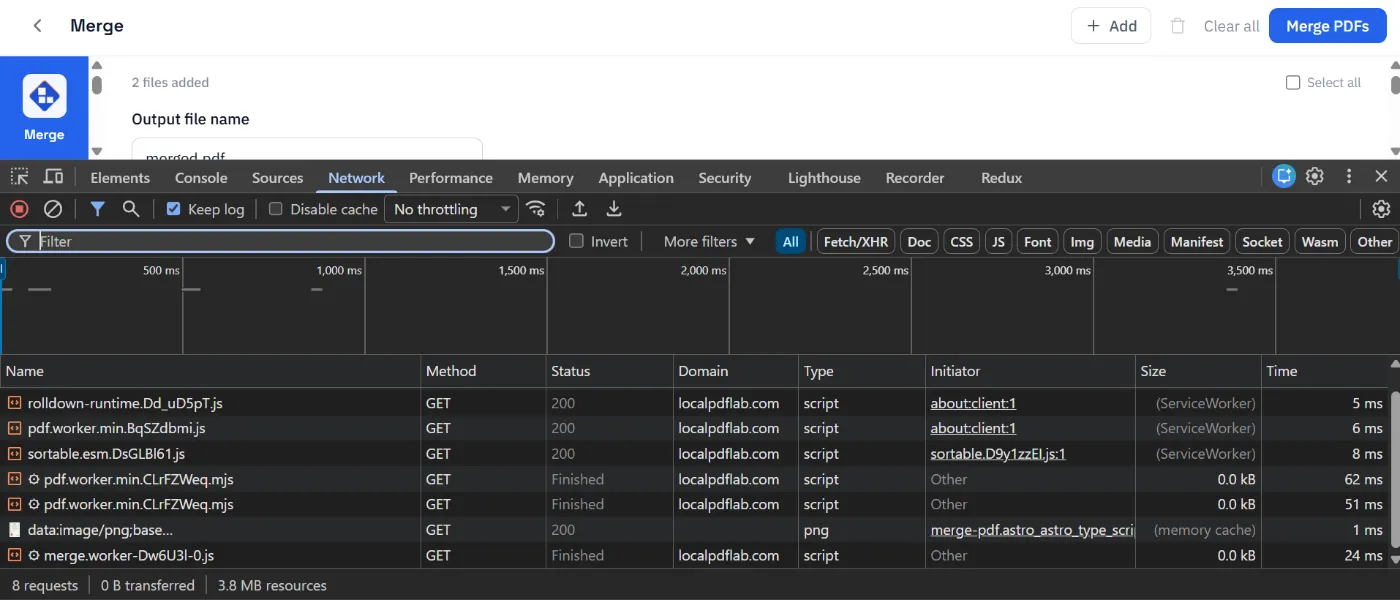
Network capture after merging and downloading a synthetic PDF. The visible remote requests are same-origin GET requests for application assets, and no document upload request was observed.
Now run the stronger check. Load the editor once, complete one harmless test so all required modules are cached, clear the editor, and select Offline in the Network throttling menu. Chrome documents this mode as a complete offline network simulation. Repeat the edit and export while it remains enabled.
If the output is created correctly, the operation doesn’t depend on a remote processor. If it fails only because a static module wasn’t cached, reconnect, load that resource with the synthetic document, and try again. If it sends the PDF before the edit button is clicked, the first Network recording should expose that behavior.
What NOT to do: don’t open DevTools after selecting the file. You can miss the first request. Don’t treat HTTPS as proof either. HTTPS encrypts an upload in transit, but the receiving server still gets the document.
3. Isolate the Browser and Keep the Parser Current
Use a fresh Chrome Guest profile or a private window with extensions disabled. Visit chrome://extensions/, open each extension’s details, and check Site access plus Allow in Incognito. Chrome’s extension documentation confirms that permitted content scripts can read page details and pass information back to their extension.
Password managers, screenshot tools, grammar assistants, download managers, and browser security products aren’t automatically hostile. They do add code and permissions to the session. For a high-impact file, fewer moving parts give you a cleaner test and a smaller attack surface.
Update the browser before processing files from an untrusted sender. PDF parsers handle fonts, images, compression streams, forms, and cross-reference structures, so a PDF is active input to a large parser, not just a picture of paper. Mozilla’s CVE-2024-4367 advisory is a concrete example: older PDF.js releases could execute attacker-controlled JavaScript while parsing a crafted font, and the fix shipped in version 4.2.67.
That incident doesn’t mean browser PDF editing is inherently unsafe. It means parser version and patching belong in the decision. The LocalPDFLab build reviewed here uses PDF.js 6.2.108, which is newer than that fixed release, and loads its PDF.js support assets from the same origin.
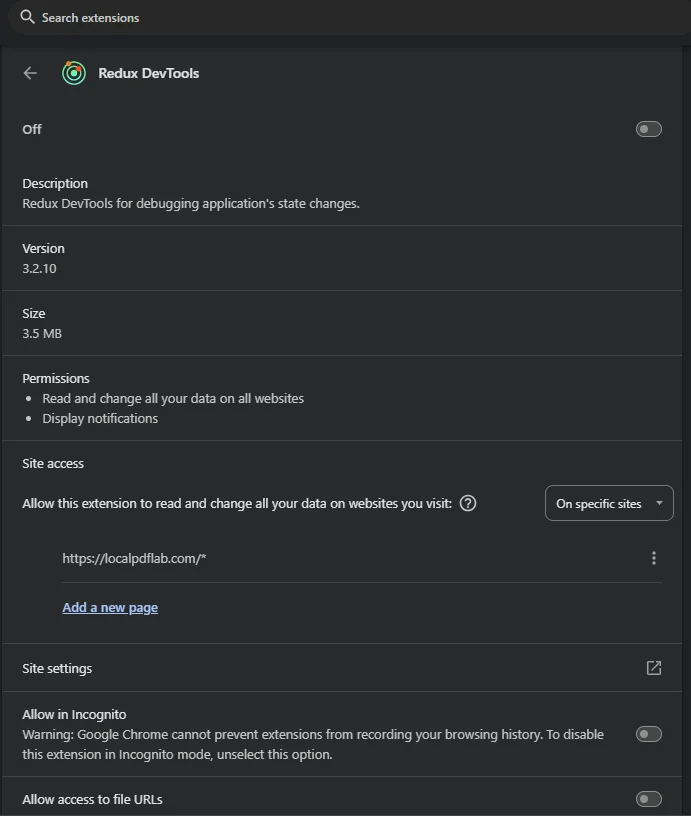
_Extension review before processing a confidential PDF. Redux DevTools is disabled, its site access is limited to https://localpdflab.com/_, and Incognito access is turned off.*
4. Check Storage, Output, and Cleanup
Local processing describes where computation happens. It doesn’t promise that nothing is written to disk. An editor may store drafts in IndexedDB, a service worker may cache application code, the browser may keep recovery data, and the operating system may page memory to an encrypted or unencrypted swap file.
In DevTools, open Application, then inspect Local storage, IndexedDB, and Cache storage for the editor’s origin. Static app files in Cache storage are normal. A document name, page image, extracted text, or large draft record needs an explanation from the provider.
LocalPDFLab’s Create PDF tool automatically saves working drafts, including document text and added assets, in IndexedDB as you edit. This is not opt-in. The Create Fillable PDF tool can also store the source PDF and field defaults when you choose Save draft or enable automatic saving. These drafts are not encrypted by the site and can remain after the tab closes. Password protection applied to a downloaded PDF does not encrypt a saved draft. Use the tools’ draft deletion controls, or close the tool tabs and clear LocalPDFLab’s site data to remove all saved drafts. See the privacy policy for storage and cleanup details.
Save the result to a controlled folder that isn’t synchronized to a personal cloud account. Close the editor tab after downloading, clear site data if the file’s handling rule calls for it, and remove unwanted copies from Downloads and recent-file lists according to your organization’s process. Private browsing does not erase the file you explicitly downloaded.
Use a hash to identify the exact input and output during verification:
Get-FileHash "C:\Controlled\source.pdf" -Algorithm SHA256
Get-FileHash "C:\Controlled\edited.pdf" -Algorithm SHA256
Different hashes prove that the output bytes changed, not that the edit is correct or private. Open the result in a separate, current PDF reader. Check page count, searchable text, links, forms, signatures, comments, attachments, and metadata that matter to the job.
Controls Site Operators Should Publish and Enforce
If you run a browser editor, make the privacy claim testable. Keep processing libraries version-pinned and bundled from your own origin, remove advertising and tag managers from tool routes, document any local draft storage, and provide an offline test path. Publish a security contact and update dependencies when parser advisories appear.
A tight starting policy for a self-contained editor looks like this:
Content-Security-Policy: default-src 'self'; script-src 'self' 'wasm-unsafe-eval'; connect-src 'none'; object-src 'none'; frame-ancestors 'none'; worker-src 'self' blob:Some applications need same-origin connections, in which case connect-src 'self' is more practical. That setting still permits uploads back to the application’s own server, so pair it with code review and a recorded network test. Don’t copy this header blindly if the app needs other resources, since a broken CSP can stop workers, fonts, or WebAssembly from loading.
The LocalPDFLab code path reviewed for existing-file tools reads selected bytes with browser file APIs, transfers processing to local workers, and offers generated bytes through blob: download URLs. Its deployed policy limits script connections to the same origin, and its service worker handles same-origin GET requests for pages and static runtime assets. Those are good controls, with the same endpoint, extension, and parser caveats described above.
How to Know It Worked
Your verification is complete when the editor produces the expected PDF with DevTools set to Offline, a full Network recording shows no document-bearing request, browser storage contains no unexplained file data, and the downloaded result passes a separate content check. For restricted documents, add one final gate: confirm that the exact browser editor, device, and save location are allowed by the document owner’s policy.
Browser-based PDF editing can be secure enough when processing is genuinely local and the whole execution path is controlled. Verify it first with a synthetic file, then repeat the offline export and output checks before trusting the workflow with confidential material.
Frequently asked questions
Is editing a PDF in a browser safer than uploading it to a server?
Local browser processing removes the server-side document copy and its retention risk. It is safer only when the page code is trustworthy, the browser and PDF libraries are current, risky extensions are disabled, and the tool does not store or transmit the file.
Does HTTPS prove that a PDF stays on my device?
No. HTTPS protects data while it travels between your browser and a server. It does not tell you whether the application sends the PDF to that server in the first place.
Can I verify local PDF processing myself?
Yes. Record a complete edit in the browser Network panel with a synthetic PDF, inspect every POST, WebSocket, and beacon request, then repeat the export with DevTools set to Offline. A successful offline export is strong evidence that the edit does not need a processing server.
Should I use a browser editor for medical, legal, or payroll documents?
Only if your organization permits that tool and browser for the document's classification. For regulated, privileged, export-controlled, or highly sensitive material, use the approved offline workflow unless your security team has assessed the web application and its deployment.
Does private browsing make browser PDF editing secure?
Private browsing reduces saved history and usually starts with extensions disabled, but it does not make untrusted page code safe. It also does not stop files saved to Downloads, operating-system swap, endpoint monitoring, or cloud folder synchronization.