
How to Compare Two PDF Files for Text and Visual Changes
Share this article
Someone sends a revised PDF, and every page seems slightly different. Maybe a sentence changed. Maybe the export used a different font, or a new cover page shifted the numbering. Reading both versions side by side can miss a small edit while wasting time on harmless layout changes.
Start with Compare PDFs, but treat its highlights as review aids rather than a final verdict. This guide shows how to choose the comparison mode, correct page pairing, handle scans, and verify the result before sharing a report. The examples use ordinary document revisions, not claims about legal meaning or file authenticity.
Why two PDFs can look different without different wording
A PDF’s visible page and its text data are related, but they aren’t the same representation. The file can position words separately, embed a photograph of text, or draw letters as shapes. A text comparison and a rendered-image comparison therefore answer different questions.
Text comparison looks for differences in extracted content. Visual comparison looks for differences in rendered pixels, which can include a moved logo, changed spacing, or a new scan artifact. A line wrapping differently might produce a large visible change without changing the intended sentence.
| Mode | Best starting point | What it can miss or overreport |
|---|---|---|
| Text only | Wording changes in PDFs with readable text | Images, appearance, or text absent from extraction |
| Visual only | Scans, graphics, and layout checks | Small details below render resolution; scan noise can distract |
| Text and visual | General review of both content and appearance | More findings to inspect and interpret |
Use Text and visual when you don’t yet know what changed. Switch deliberately after inspecting a sample, rather than selecting the quietest mode because it produces fewer findings. A low count can mean the document changed little, or that the chosen method isn’t looking at the changed content.
LocalPDFLab’s comparison does not run OCR on scans. An image-only page can be reviewed visually, but it doesn’t gain readable text simply because you select Text only. If you need recognized text, prepare separate copies with OCR PDF and check recognition errors before comparing them.
1. Load the versions in a consistent order
Keep the original and revised files in separate, clearly named copies. Names such as proposal-original.pdf and proposal-revised.pdf are enough for a small review. Avoid overwriting either file while you’re still deciding which differences matter.
Open the comparison tool and select both PDFs, or choose one and add the second inside the workspace. Check the filenames above the previews before running the comparison. Use Swap PDFs if you placed them in the opposite order from your intended review.
The labels describe position, not approval status. Only in first PDF means the text is absent from the second input, while Only in second PDF means it is absent from the first. Calling one file “final” doesn’t make its wording correct, and the tool doesn’t edit either input.
Open Show settings & results to see the comparison controls. Leave Mode at Text and visual for an initial sample, then decide whether to limit First PDF pages and Second PDF pages. Both inputs accept ranges such as 1-5, 8.
Use physical PDF page positions, including cover sheets and appendices. If a proposal prints “Page 1” after two introductory pages, the printed number and the input range aren’t interchangeable. Confirm the thumbnails and page content before restricting a comparison to a numbered section.
The current tool rejects an individual PDF larger than 100 MB. Smaller files can still put pressure on memory if they contain many complex pages or large scans. For a difficult document, begin with a short page range so you can validate the method before expanding the review.
2. Check page matching before trusting the highlights
Click Compare PDFs and inspect the page pairs before reading every reported change. Automatic matching tries to pair corresponding pages even when a revision inserts or removes a sheet. That is helpful, but repeated layouts, blank pages, and near-identical forms can make the suggestion uncertain.
Imagine a three-page proposal whose revised version adds a cover. Comparing physical page one with physical page one would put the old introduction beside the new cover. That mismatch can generate many findings that disappear once you compare corresponding content.
The tool can flag unmatched pages and offer Compare in page order. Use that option when selected page order is the appropriate rule, not simply because automatic matching produced a warning. First determine whether the documents contain inserted, deleted, or repeated pages that explain the mismatch.
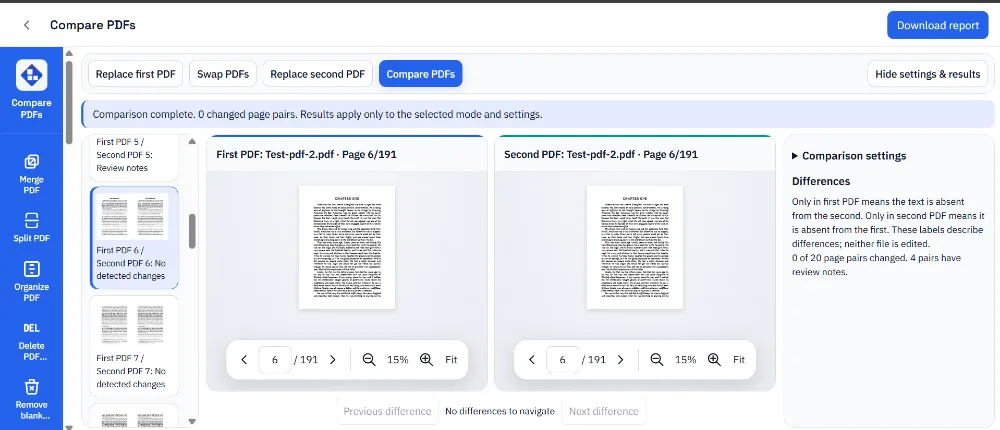
To correct a specific pair, set each input’s page range to the intended pages and choose Selected page order under Page matching. Run the comparison again. For example, compare original page 2 with revised page 3 if those pages contain the same section after an insertion.
There isn’t a reason to reorder your original files just to test a suspected pairing. Ranges let you review a pair without modifying either source. If you later need to assemble a different document, do that as a separate task with Organize PDF and keep the reviewed versions intact.
3. Separate wording changes from scan and layout noise
Once the page pairs make sense, inspect the differences in the mode most relevant to your question. If you’re checking wording in a digital proposal, try Text only after the initial combined run. Keep a separate visual review for layout-sensitive details, graphics, and any text that extraction may have missed.
Ignore whitespace can reduce differences caused by spacing, while Ignore letter case can suppress capitalization changes. These settings are useful only if the suppressed distinction is irrelevant to your review. Leave case comparison active when a capitalization change could matter to an identifier, heading, or product name.
For scanned pages, use Visual only or the combined mode. Small differences in paper alignment, brightness, scanner noise, or page size can produce distracting regions. Compare scans made under similar conditions when possible, and inspect the source pages before blaming the comparison settings.
| Symptom | First diagnostic step | Avoid this shortcut |
|---|---|---|
| Nearly every page changes after a new cover | Inspect page pairs | Treating unmatched pages as rewritten text |
| Same wording, many spacing findings | Review text mode and whitespace setting | Ignoring all changes without sampling |
| Scan shows no useful text findings | Use visual mode or verified OCR copies | Assuming no extracted text means no change |
| Many tiny visual regions | Review Balanced and Low sensitivity | Lowering sensitivity until the report is empty |
The tool’s Visual sensitivity offers High, Balanced, and Low. Start at Balanced and sample a known difference before trying Low to reduce noise. Lower sensitivity can also hide a faint or small real change, so keep a known changed region in view when adjusting it.
Changing a setting invalidates the previous report until you compare again. That prevents a new set of controls from appearing to describe an old result. Re-run after changing mode, ranges, matching, sensitivity, or text-normalization options.
Read visual findings at the right level of detail
Use Next difference and Previous difference to work through findings, then inspect the surrounding page content. A highlighted region tells you where to look, not what the change means. Check the complete sentence or graphic instead of making a decision from an isolated word fragment.
The current visual comparison uses a reduced rendering size, capped around 1,000 pixels on its longest comparison dimension. That keeps the operation manageable, but it isn’t a full-resolution inspection of every fine line. Tiny punctuation, faint marks, and intricate artwork deserve a closer look in the source PDFs.
Zooming the preview helps you inspect the document, but it doesn’t turn an already computed comparison into a new higher-resolution analysis. If a small detail matters, examine both originals at an appropriate zoom and record your finding separately. Don’t present a clean visual report as proof that every source pixel matches.
For a changed photograph, the comparison can identify a rendered region worth checking. If you need to inspect the individual picture’s dimensions or export it for closer review, follow the PDF image extraction guide. Remember that image extraction and page rendering expose different parts of the document.
4. Verify the findings and save a useful report
Read a few findings against the original files before saving the report. Check an obvious addition, a deletion if present, and an unchanged page or section. This catches a reversed input order or incorrect pairing while the problem is still easy to correct.
Use Changed only to focus the page-pair list after you’ve reviewed its structure. Keep track of the ranges and settings used, especially when the comparison covers only part of a long document. A report on pages two through five should not be described as a review of the whole file.
Click Download report when the latest comparison is complete. Keep the report with the two reviewed versions and a short note of any manually checked details. The report is a review artifact, not a replacement for the original files or an explanation of the consequences of a change.
If Download report becomes disabled after a settings change, run Compare PDFs again. If you cancel processing, don’t treat a partial view as a completed review. Wait for the finished state and inspect the output associated with that run.
Our synthetic browser checks covered inserted-page matching, text and visual changes, identical input files, the report action, changed settings, and cancellation. They establish that those cases worked in the stated setup. They don’t prove that automatic matching will interpret every production document correctly.
What not to use a comparison report to prove
Don’t treat “no differences” as a claim that the files are byte-for-byte identical. PDF metadata, attachments, hidden actions, or form behavior can differ without producing a visible page change. This tool focuses on extracted text and rendered page appearance, not a complete inventory of every PDF object.
Likewise, a visually unchanged form may have different field names, defaults, or interactive behavior. Use the fillable PDF verification workflow to enter answers, save, and reopen the form. A picture of an empty answer box can’t prove that the underlying control works.
Adobe’s comparison documentation also distinguishes document types and comparison settings. Its scan-processing behavior is not interchangeable with this tool’s visual-only handling of image-only content. Check the actual workflow rather than assuming all products labeled “Compare PDF” use the same analysis.
For private material, read the browser PDF security guide and follow your organization’s approved handling process. Local comparison doesn’t remove the need to protect downloaded reports, which may reproduce sensitive wording or page content.
How to know it worked
The comparison is useful when the intended pages are paired, a known edit is found, and the saved report corresponds to the latest settings and input versions. Verify those three points against the originals before passing the findings to another reviewer.
Frequently asked questions
Can I compare scanned PDFs for differences?
Yes, use Visual only or Text and visual to compare their rendered appearance. The comparison tool does not run OCR. For text comparison of image-only scans, create OCR copies first and check the recognized text for errors.
Which comparison mode should I choose?
Start with Text and visual for a general review. Text only suits wording checks in documents with readable text layers. Visual only suits scans, graphics, and layout checks, but small details can be missed at the bounded comparison resolution.
How do I fix incorrectly matched pages?
Review the Page pairs list, then enter the intended page ranges for each PDF and choose Selected page order. Run the comparison again. Use physical PDF page positions rather than printed page numbers, especially when a version has a new cover or inserted pages.
Does no differences mean the files are identical?
No. The result applies to the selected pages, settings, extracted text, and rendered appearance. Metadata, attachments, hidden actions, or form behavior can differ without a visible change. A comparison report is not proof of byte-for-byte identity or authenticity.
Why is Download report disabled after changing settings?
Changing comparison settings invalidates the previous result. Run Compare PDFs again and wait for completion before downloading the report. Canceled or unfinished processing should not be treated as a completed review.